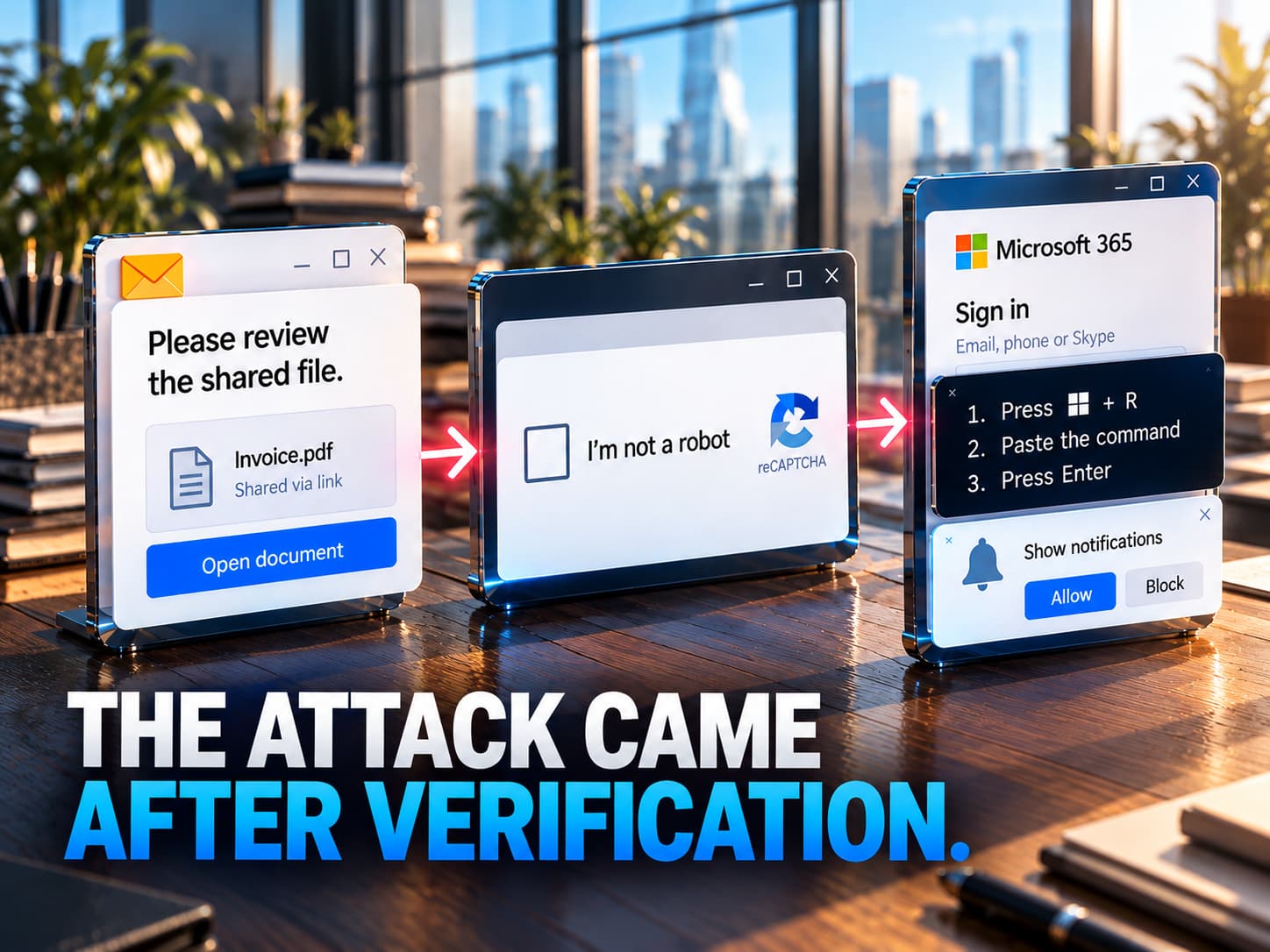
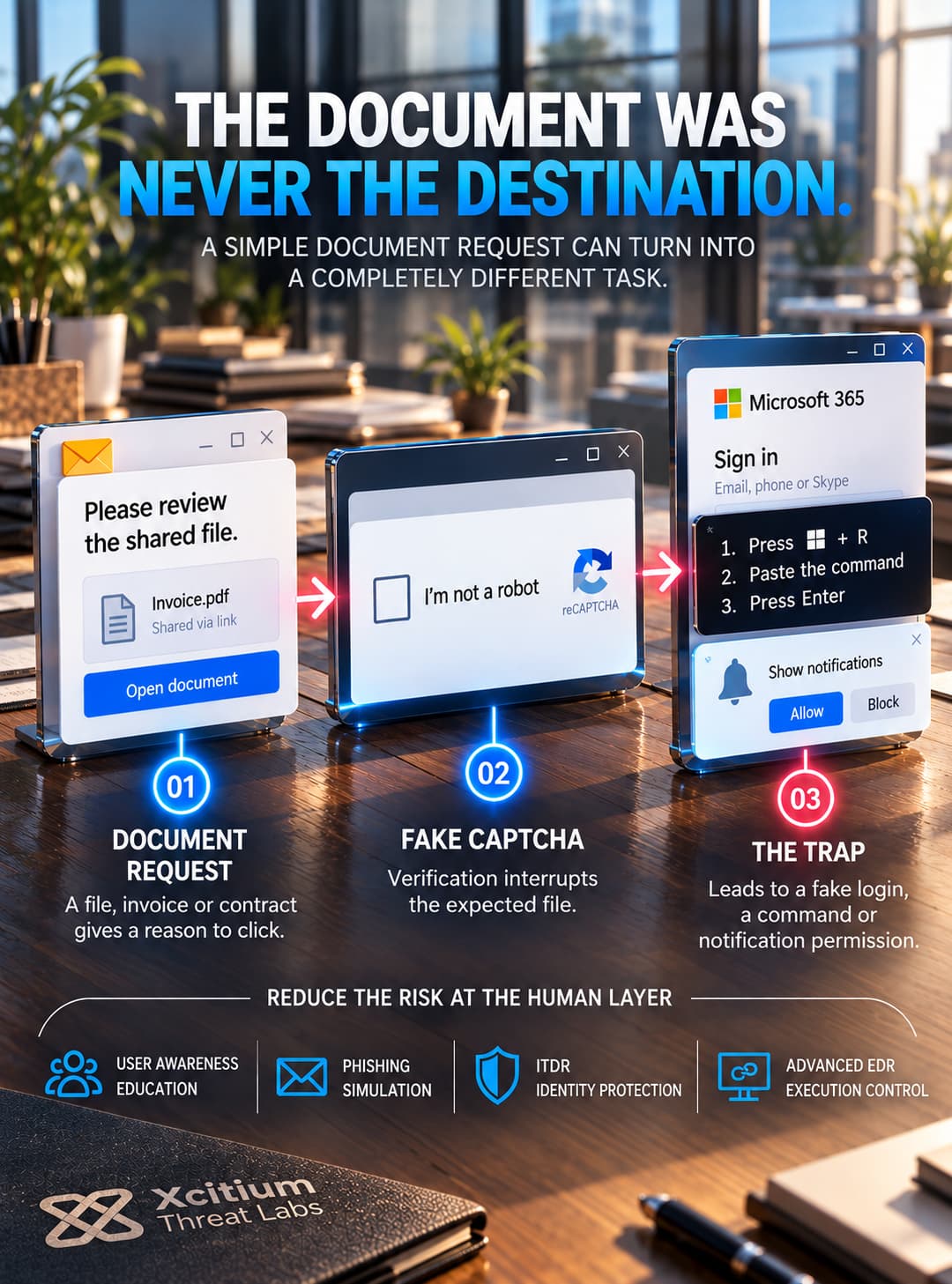
The document hasn’t opened yet. Instead, a page asks the employee to prove they are human before continuing. In fake CAPTCHA phishing, that interruption gives an attacker time to redirect the task. An employee expecting a file may end up entering a password or running a command on their own computer.
Coverage published on October 15 describes several ways these pages operate. Some lead to counterfeit Microsoft 365 sign-ins; others prompt downloads, notification permissions, or ClickFix instructions. The account brings together different attack routes, so a visit to a CAPTCHA page alone doesn’t establish which one followed.
A Document Request Makes the Check Feel Routine
An invoice needs review, a contract needs checking, or a colleague appears to have shared a file. Those are the kinds of requests used to bring recipients to a CAPTCHA screen. Because the message has already supplied a reason to open the page, verification fits into the task.
The sequence can borrow more than one brand. After a document-sharing message and CAPTCHA, an Adobe-style prompt may appear before a Microsoft login. By then, the person has followed several small requests that seem related to the same document.
Consequently, the first convincing screen needn’t be the one that takes the password. Its job can simply be to get the employee to continue.
The Credential Route Stays Inside the Browser
For an employee waiting to see a shared file, a Microsoft 365 login can seem like the remaining step. In the credential-harvesting route, however, that screen is counterfeit. Entering account details gives them to the attacker without requiring the employee to install a program.
An investigation therefore has two separate questions to answer. Did the person reach the page, and did they submit anything? A record of the visit answers only the first. Likewise, finding no malware on the computer doesn’t settle whether someone typed a password into a website.
No named kit or demonstrated MFA bypass accompanies this account. Microsoft branding establishes the service being imitated; it doesn’t establish how an attacker would handle a second authentication factor.
How a Fake CAPTCHA Redirects a Document Request
ClickFix Moves the User From a Page to a System Tool
With ClickFix, the instructions carry the person out of the browser. A checkbox or Verify button can place a hidden command on the clipboard. Next, the page tells the visitor to open Windows Run or another system tool and paste it. Pressing Enter supplies the execution step.
The command hasn’t run merely because the page copied it. Following instructions presented as verification, the victim completes that part. A broken document preview, meeting problem, or update notice can provide another reason to attempt the supposed repair.
Clipboard behavior also depends on the browser. Web APIs allow sites to write data, but permissions and user interaction requirements vary. For example, Chromium and Firefox do not apply identical rules. The reporting gives no browser-by-browser test results for these pages, so it cannot establish that the concealed copy works everywhere.
Notification Permission Opens Another Delivery Route
Other pages ask visitors to enable browser notifications. Unlike a pasted command, this grants a website permission to display messages. The browser’s notification system can present them outside the page, including while an application is idle or in the background.
A normal permission dialog can therefore appear within an abnormal workflow. The interface belongs to the browser, but the site requesting permission still controls the content it wants to deliver.
This branch supports further delivery of malicious content. Permission alone does not establish malware installation, stolen credentials, or unrestricted control of the computer. Those outcomes require separate evidence of what happened after the visitor approved the request.
A Human Visitor May See What a Scanner Misses
An email scanner follows a link and reaches a challenge. For the employee, the next step may be a login form or download. Both can have visited the same address, but only one may have seen the content that followed. CAPTCHA gates can produce that gap when automated inspection cannot complete the check.
The destination may change as well. Device, location, activity, and timing can affect what a visitor receives; some pages expire after viewing. A later attempt to reopen the link may therefore miss what the employee encountered.
There is no claim here that every scanner fails. However, a clean revisit can’t reconstruct a missing step on its own. The original message and the visitor’s actions still matter, especially when a command, credential submission, or permission grant happened after the page that remains available.
Conclusion: The CAPTCHA Was the Gate. The Attack Came Next.
Fake CAPTCHA phishing demonstrates how attackers can turn a familiar security check into the starting point of an intrusion. What appears to be a routine verification step before opening a document can instead redirect an employee toward credential theft, malicious command execution, or browser permission abuse.
The deception begins with an ordinary business task. An employee receives a request to review an invoice, contract, or shared document. Instead of opening the expected file, the link presents a CAPTCHA. Once the employee accepts that interruption as legitimate, additional requests can appear to be part of the same workflow.
The danger lies in what happens afterward. A counterfeit Microsoft 365 login can collect credentials without installing malware. A ClickFix page can persuade the user to execute a command through Windows Run or another system tool. A browser notification request can establish a channel for further deceptive messages. These are separate attack paths, each requiring different evidence and defensive controls.
The CAPTCHA also complicates investigation. Automated scanners may stop at the verification screen while human visitors proceed to content the scanner never inspected. A clean scan or later revisit therefore cannot establish what the employee originally encountered.
Why This Threat Matters
- Verification becomes the deception. Attackers exploit the familiarity of CAPTCHA challenges to make unexpected instructions appear legitimate.
- One lure can lead to different outcomes. Credential harvesting, ClickFix execution, and notification abuse require separate investigation and response.
- Human interaction can cross the execution boundary. ClickFix depends on persuading the victim to run a command that the website cannot execute directly.
- Automated scanning may miss the actual destination. CAPTCHA gates and changing page content can prevent security scanners from observing what a human visitor receives.
- A clean endpoint does not rule out credential exposure. Password submission can occur entirely inside the browser without installing malicious software.
- Permission does not equal compromise. Allowing browser notifications creates an additional communication channel but does not independently establish malware installation or account takeover.
Where Defensive Control Must Operate
Xcitium Cyber Awareness Education helps employees recognize fake CAPTCHA challenges, counterfeit login pages, and suspicious requests to execute commands or enable browser notifications. Phishing Simulation tests whether users resist these deceptive workflows and report them before completing the attacker’s instructions.
When stolen credentials are used for unauthorized account access, Xcitium ITDR helps expose suspicious authentication and abnormal identity activity.
If ClickFix leads to command execution, Xcitium Advanced EDR, powered by Xcitium’s patented Zero-Dwell platform, provides endpoint visibility into malicious execution and follow-on activity. Execution Governance adds an earlier control point by restricting what unknown code can do on the endpoint.
Investigate What Happened After Verification
Organizations should treat unexpected verification requests as potential security events, especially when they interrupt legitimate document workflows. Employees should verify suspicious requests through established communication channels rather than following instructions displayed on unfamiliar pages.
Incident response must also distinguish between visiting the CAPTCHA, submitting credentials, executing a command, and granting browser permissions. Each action creates a different level of exposure and requires a different investigation.
Security teams should preserve the original message, review authentication activity when credentials may have been submitted, investigate endpoint execution when system commands were involved, and revoke suspicious browser permissions where appropriate. A later clean scan cannot replace evidence of what the employee actually did.